BOX: Getting Started and Navigation Basics
Overview
This user guide covers the following:
See also QRG Box - Getting Started
Logging InLedcor has an enterprise account which is SSO (Single Sign On) enabled. This means your Box account is linked to your Ledcor network account and therefore uses the same user ID and password. Note: If you experience results different from this user guide, submit an IS Service Request. There are two methods for logging in to Box. |
|||
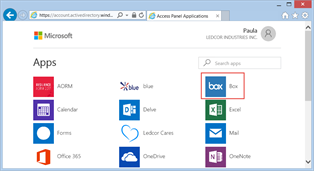
Option 1: Logging in via cloud.ledcor.com1. In your browser, go to cloud.ledcor.com 2. Click on the Box tile. |
|
||
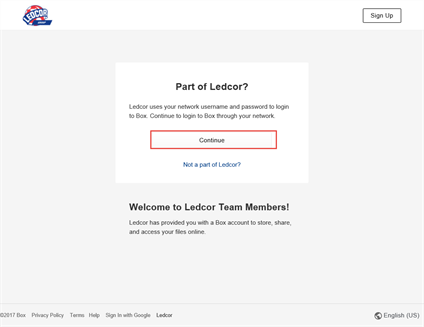
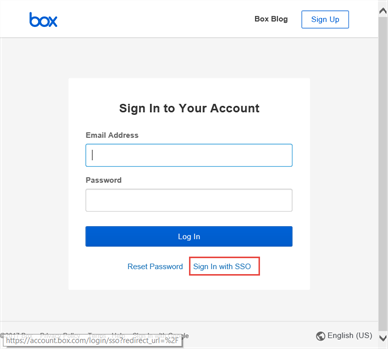
Option 2: Logging in via box.com1. In your browser, go to box.com. 2. Do one of the following:
|
|
||
|
|
||
|
3. On the Ledcor - Box sign in page, enter your email address and click Sign In. Note: If you are not connected to a Ledcor Network, you also need to enter your Password. |
|||
Introducing the Box interface
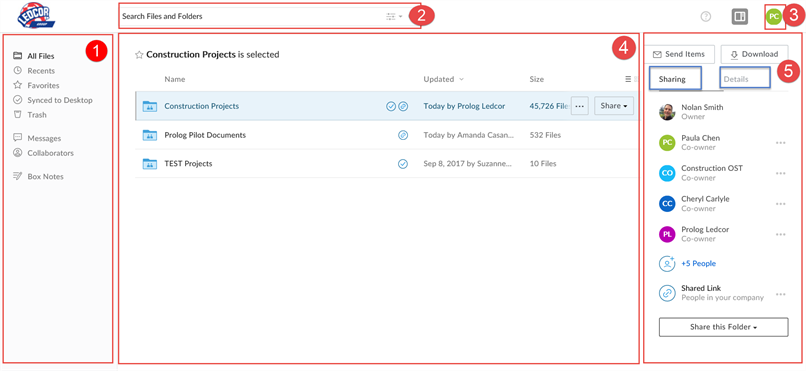
Legend: 1. Navigation Pane 2. Search field 3. User Settings 4. Files and Folders Workspace 5. Sharing and Details tabs for the selected item (in this screenshot, the Construction Projects folder is selected) |
|||
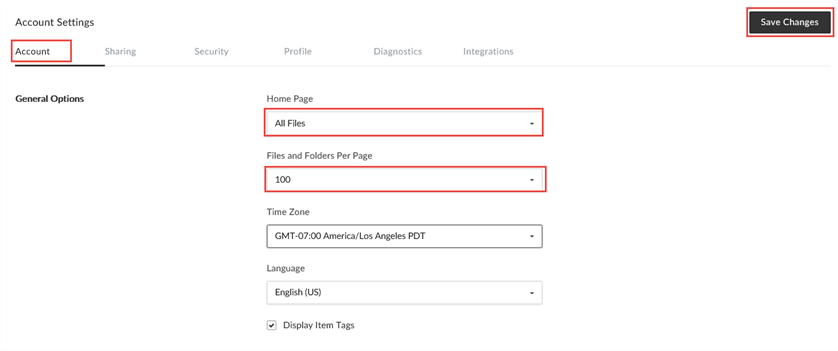
Setting your Box Home PageYou can customize your home page and the number of files and folders displayed per page. Following are the recommended settings. |
|||
|
1. Click the User Settings icon and select Account Settings. 2. In the Account tab:
|
|||
Setting up FavoritesSet your most used items, files or folders, as favorites for quick access. There are three methods for navigating to an item: |
|||
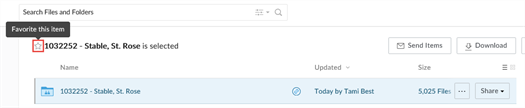
Option 1: Star icon1. Select the item and click the star icon next to the Name.
|
|||
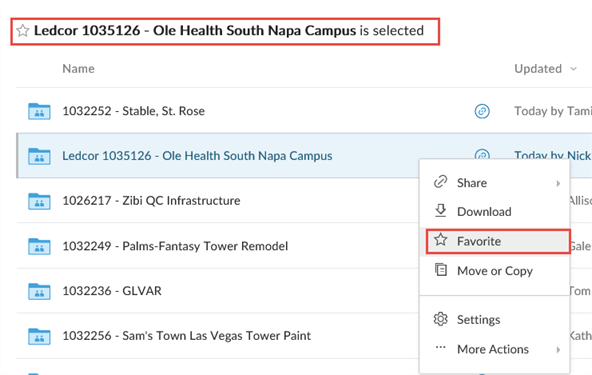
Option 2: Right-click1. Right-click on the item and select Favorite.
|
|||
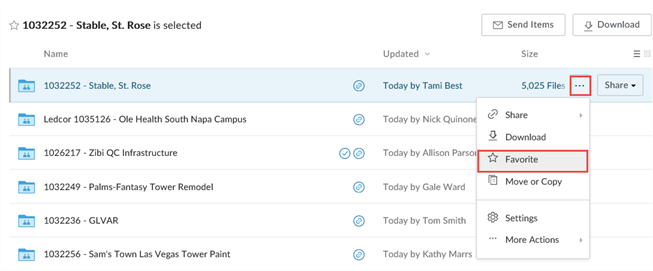
Option 3: More Options menu1. Select the item and click on the More Options menu “…”. 2. Select Favorite.
|
|||
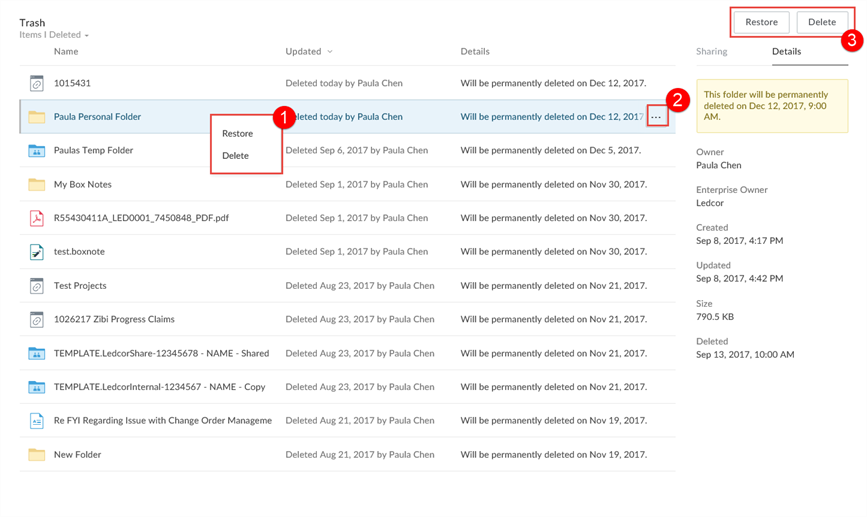
TrashAll files or folders you delete can be recovered for up to 90 days. To access the Trash, on the left navigation panel, click Trash. |
|||
|
You can Restore or Delete items in your Trash by doing any of the following:
|
|||
Adding Apps1. Click the User Settings icon and select Apps. Download and install the essential apps shown below.
|
|||
|
|
||
|
|
||
|
|||
Logging Out1. Click the User Settings icon and select Log Out. |
|||