BOX: Installing and Using Box Drive
Prerequisites
Windows 10
Overview
Box Drive is an app that caches documents from Box to your local computer, without storing those documents locally on your computer. Since nothing is stored on your computer, there is no need to sync folders.
This user guide covers:
Installing Box Drive |
|
|
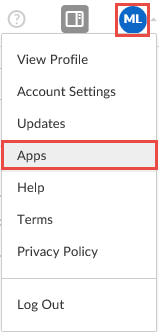
1. Log in to Box (see BOX: Getting Started and Navigation Basics). 2. Click the drop-down arrow next to your User Settings icon, then click Apps. |
|
|
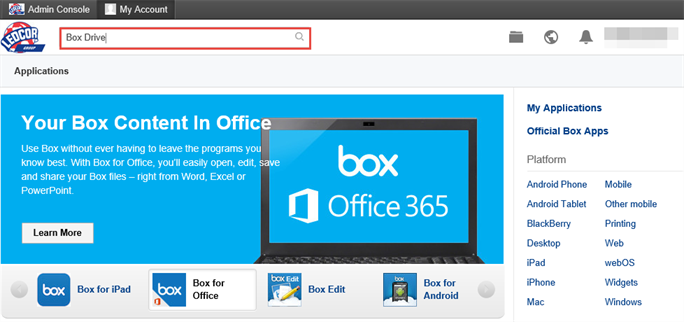
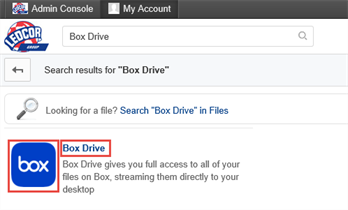
3. In the Search Applications field, enter Box Drive, then press Enter.
Box Drive is displayed in the search results. |
|
|
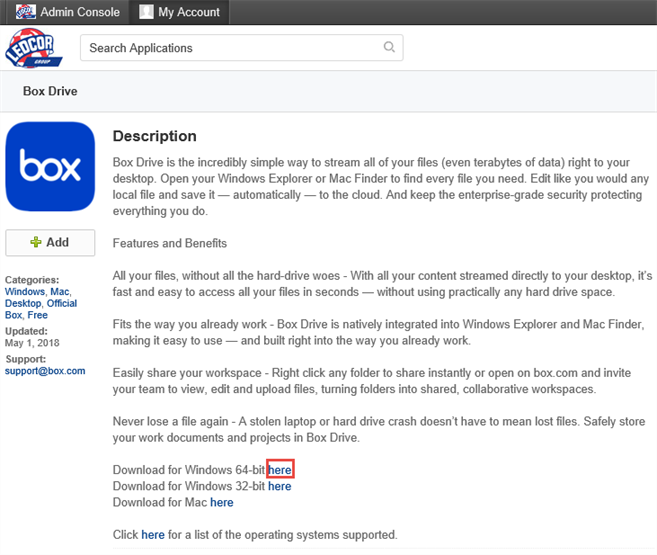
4. Click either the Box Drive icon or text. The app description page is displayed. |
|
|
5. Next to Download for Windows 64-bit, click here.
|
|
|
6. In the pop-up dialog box, click Run.
Box Drive is downloaded and the installation begins. 7. If a User Account Control dialog box is displayed, click Yes. |
|
|
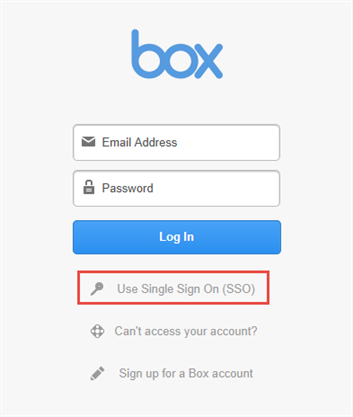
The Box Login dialog box is displayed. 8. Click Use Single Sign On (SSO). |
|
|
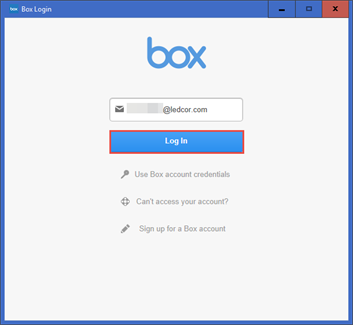
9. Enter your Ledcor email address, then click Log In. The Microsoft Sign In dialog box is displayed. |
|
|
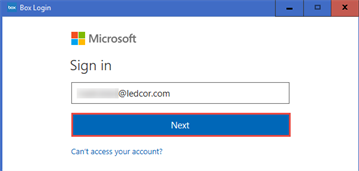
10. Enter your Ledcor email address, then click Next. The Ledcor Group of Companies sign-in dialog box is displayed, with your email address populated. |
|
|
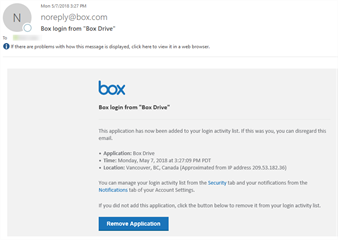
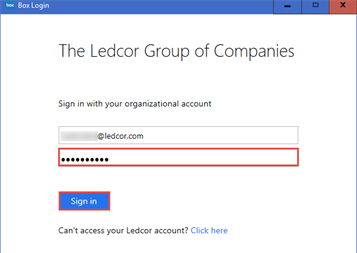
11. Enter your password used for your Windows login, then click Sign In. The Welcome to Box Drive dialog box is displayed. Note: An email is also sent to your inbox with the Subject line Box login from "Box Drive". You can safely ignore this email.
|
|
|
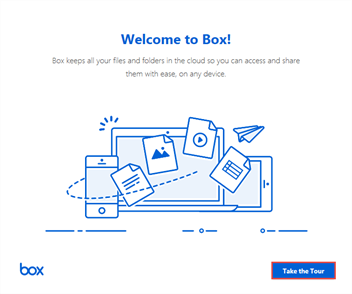
12. Click Take the Tour, then click Continue to review each page of the tour. |
|
|
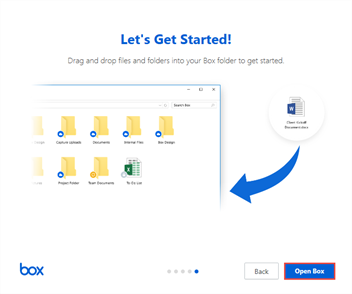
13. On the Let's Get Started page, click Open Box. |
|
|
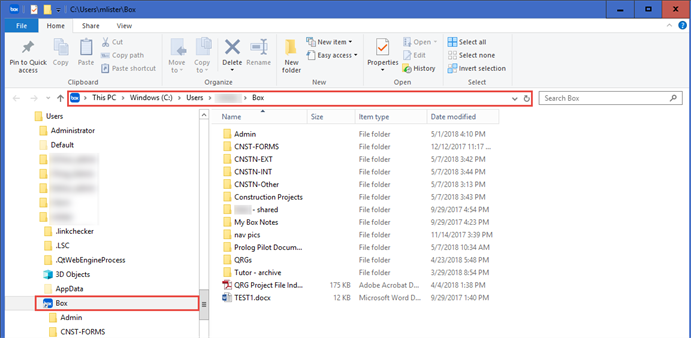
Your Box Drive folder opens in a new Windows Explorer window.
|
|
Opening Box Drive |
|
|
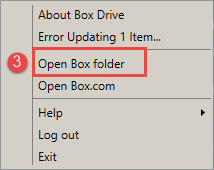
To open your Box Drive folder, do one of the following:
|

|
Searching in Box Drive |
|
|
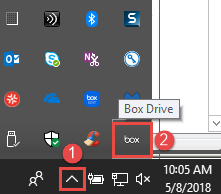
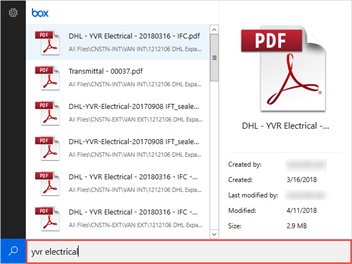
Tip: Press Ctrl+Shift+Alt+B as a keyboard shortcut to search Box Drive. 1. In the notification area on the taskbar, click the arrow, then click the Box Drive icon. The Box Drive Search pane is displayed. |
|
|
2. Enter your search term. Box Drive automatically searches as you type, and displays results. |
|
|
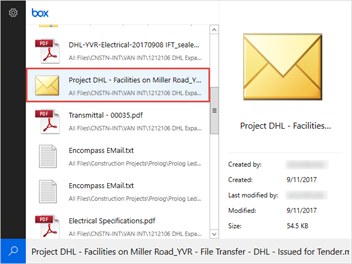
3. Scroll to see all results, and double click a document to open it. Tip: Click a document to highlight it and see the document metadata in the preview pane at right. |
|
Adding Folders to Quick Access |
|
|
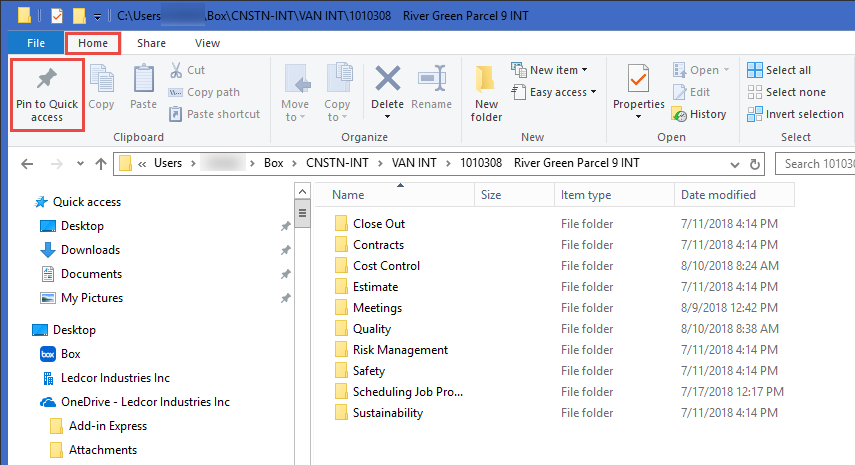
In Windows Explorer in Windows 10, Quick access items are equivalent to Favorites. For frequently used folders, you can Pin to Quick access for faster access. To add folders to Quick access: 1. Open your Box folder. See Opening Box Drive. 2. Navigate to the folder you want to add to Quick access. |
|
|
3. On the Home tab, click Pin to Quick access.
|
|
|
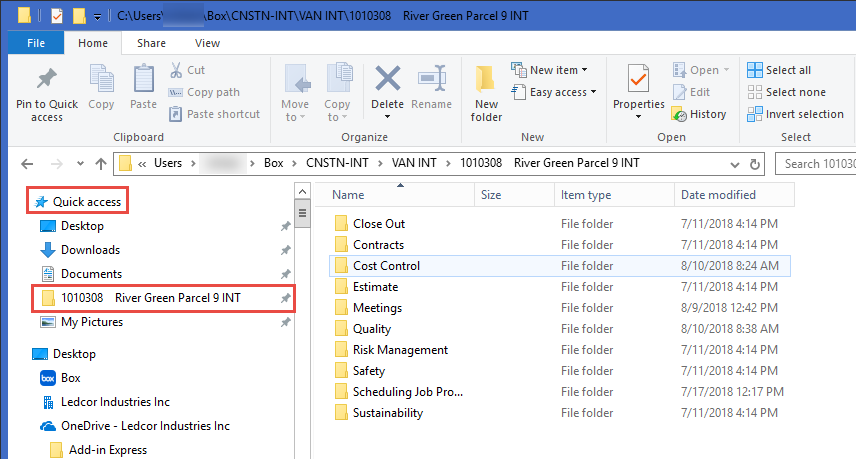
The folder is displayed under Quick access on the left navigation frame in Windows Explorer.
|
|